Put a marker in the title of an appointment, a bell 🔔 for instance: the alarm rings that day, at the time it starts. And you can set your own alarms too, choosing the days and the time.
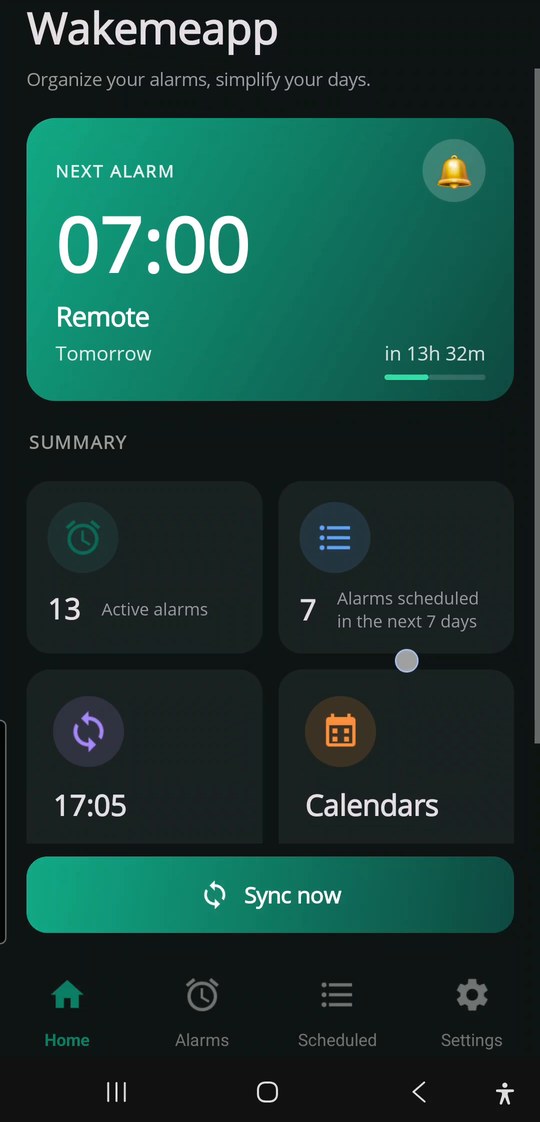
Gym at 6:30, office at 7:15, working from home at 8. Every night you have to remember which alarm to turn on. One tired evening is enough and the wrong one rings, or none at all.
Nothing to remember at night. Go to sleep: Wakemeapp takes care of the alarm.
It rings on the day of the appointment, at the time it starts. Move it and the alarm follows.
It uses system alarms: it rings on time even with the phone locked.
From the appointment with the bell to the alarm that rings, week after week, without setting anything.
You connect Google Calendar and Outlook, and Wakemeapp looks through all your calendars, the ones shared with you included, to build the alarms from your appointments.
Google or Outlook, several accounts together if you like. Wakemeapp reads your calendar and nothing else.
Paris meeting 🔔 at 7:30 becomes an alarm at 7:30 that day. The alarm takes the title as its name, marker aside. The bell comes as standard, and you can swap it for any symbol or word you like.
Move the appointment and the alarm follows it, delete it and the alarm goes with it. Ringtone, volume and snooze stay as you set them, alarm by alarm.
Put your appointments in the way you always do. What counts is the marker in the title: the alarm rings when the appointment starts.
The alarms turn up on their own, already carrying the name of the appointment. There is nothing to type in.
Two appointments with a bell on the same day? Two alarms, each at its own time.
The week the gym is not on your calendar, nothing rings at 06:30. Put it on Saturday as well and the alarm turns up at the next check.
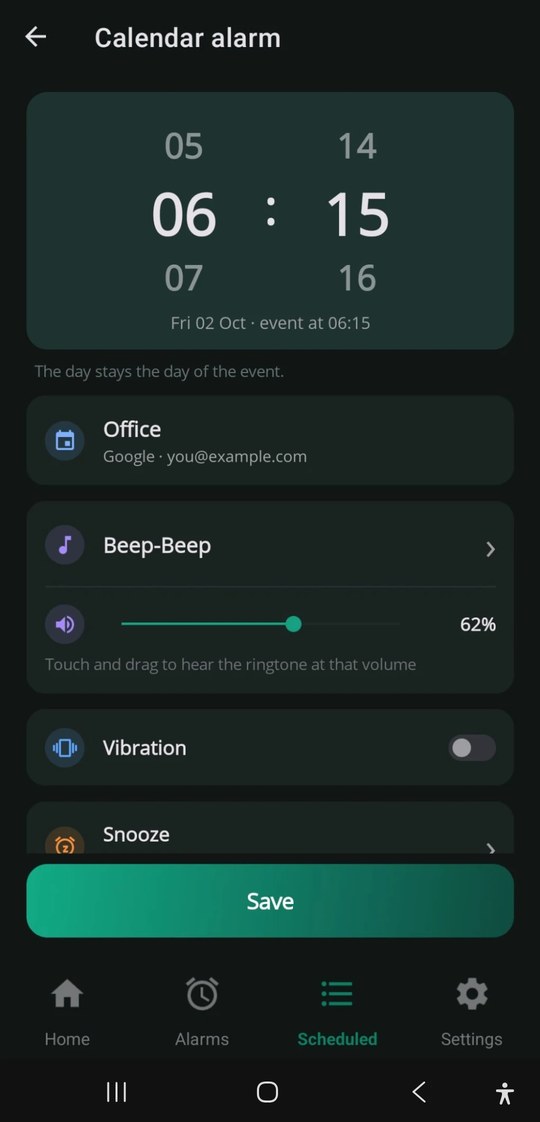
Need it earlier? You can move the time of a calendar alarm: dentist at 10, alarm at 8. Even for every repeat.
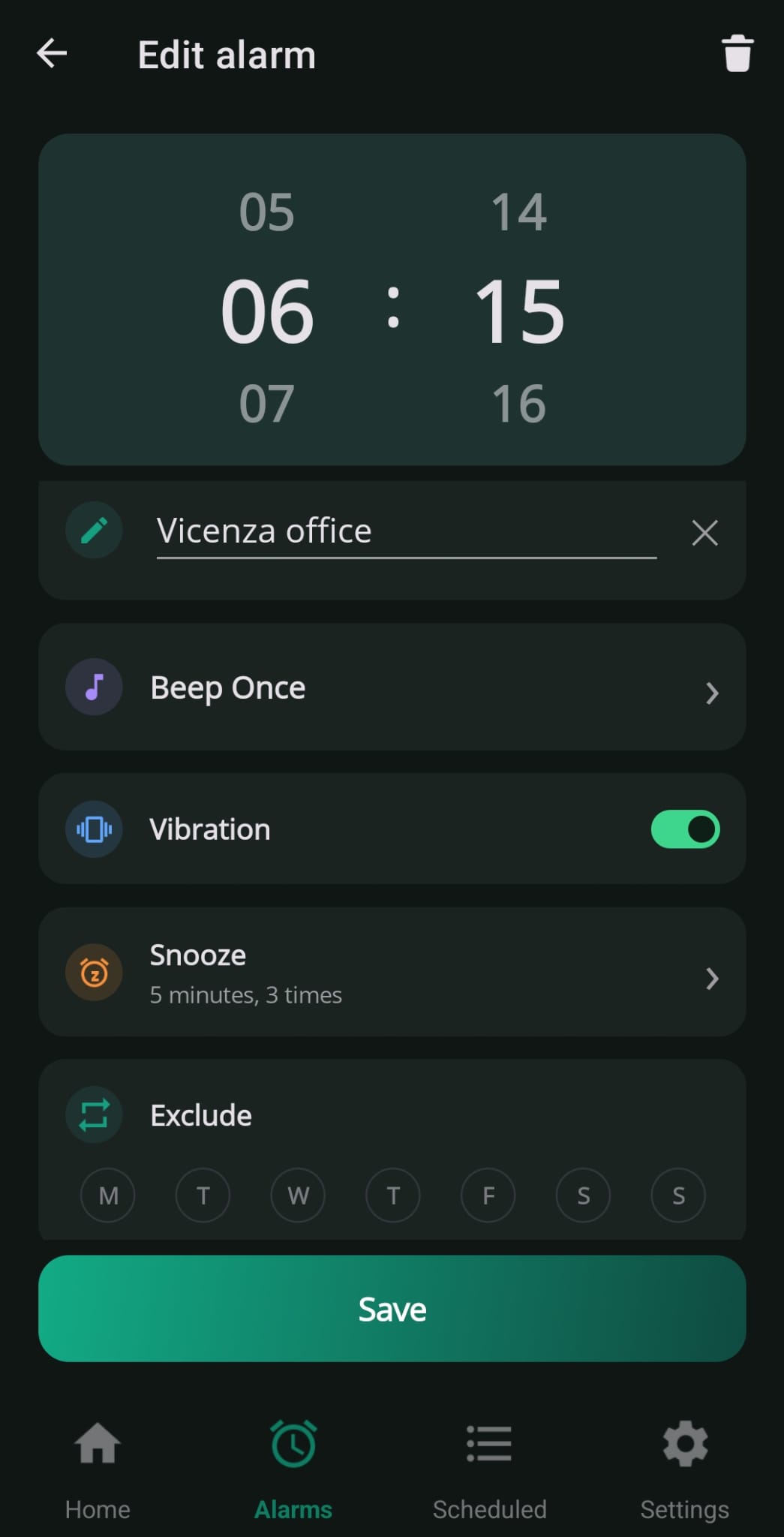
The ones that come back every week, calendar or no calendar: a time, the days, and a name only if you feel like giving one.
Pick the days of the week and it rings on those, every week, with no calendar involved.
No day picked? It rings at the first chance, today or tomorrow, and then switches itself off.
Ringtone, volume, vibration and snooze are set one alarm at a time, these ones and the calendar ones alike.
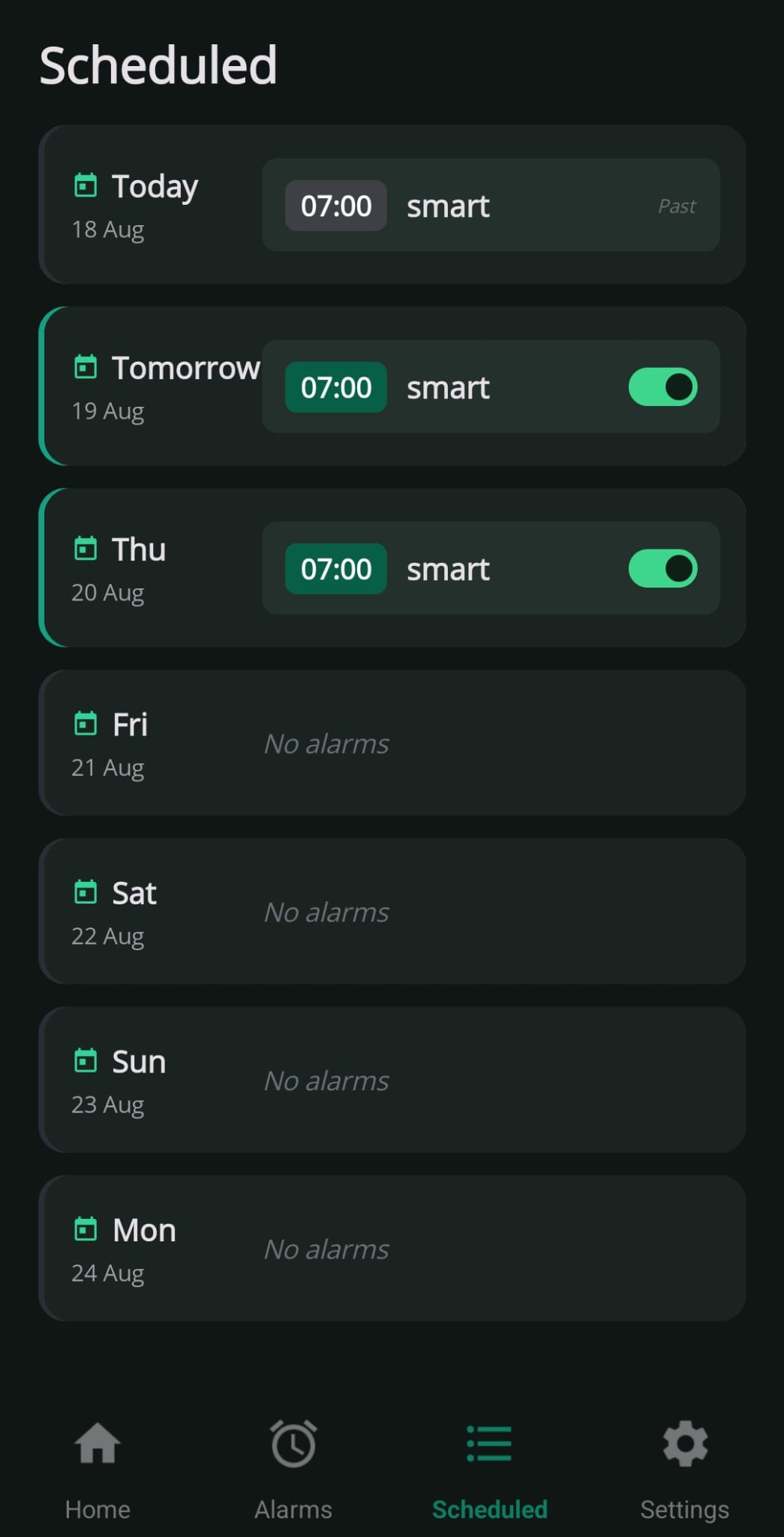
Both kinds live in the same app, and in Scheduled you see them side by side, five weeks ahead.
Choose where you’re going and how you’re getting there: the alarm rings a few minutes before you arrive. For anyone who dozes off on the train, or doesn’t want to miss their bus stop.
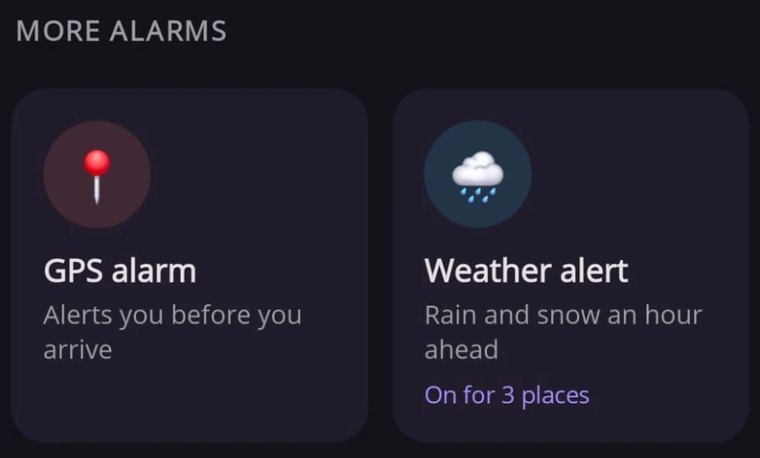
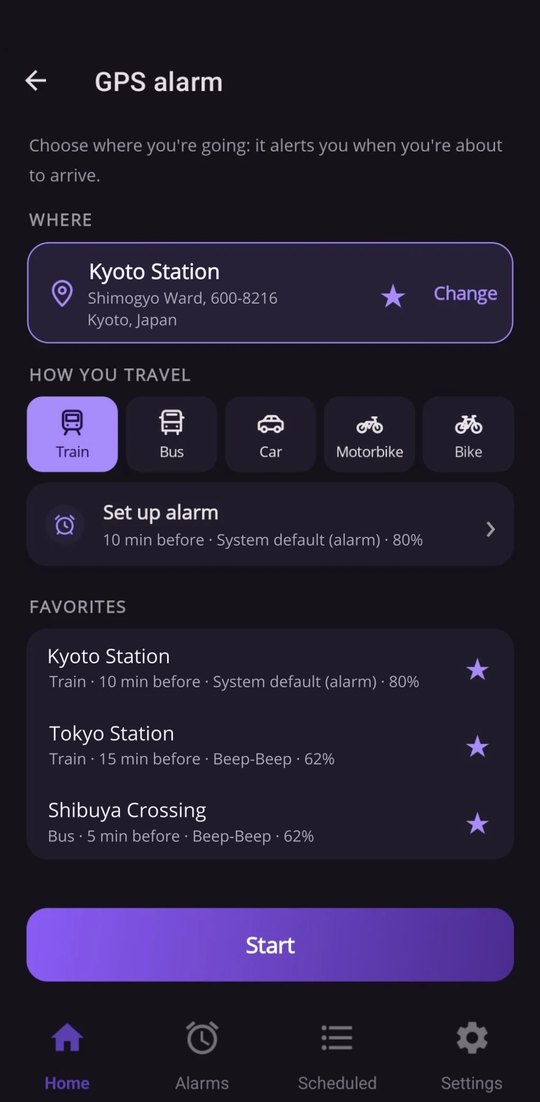
Pick how you travel: the minutes are estimated on the real route, the tracks for the train, not as the crow flies.
From 5 to 60 minutes before you arrive, with the ringtone and volume you like. The destinations you use most stay in your favorites.
A notification that stays put, with the distance, the minutes left and a button to stop it. On Home you see how long until it rings.
If you stay still for a long time, move away from the destination or the trip lasts too long, it switches off and tells you. One tap turns it back on.
It’s an estimate, based on position, speed and route: in a long tunnel or with many stops it may ring a little early. Better early than late.
Pick up to three places, even far apart: Rome, London, New York. If rain is due in London at 15:00, at 14:00 your phone vibrates twice and you already know.
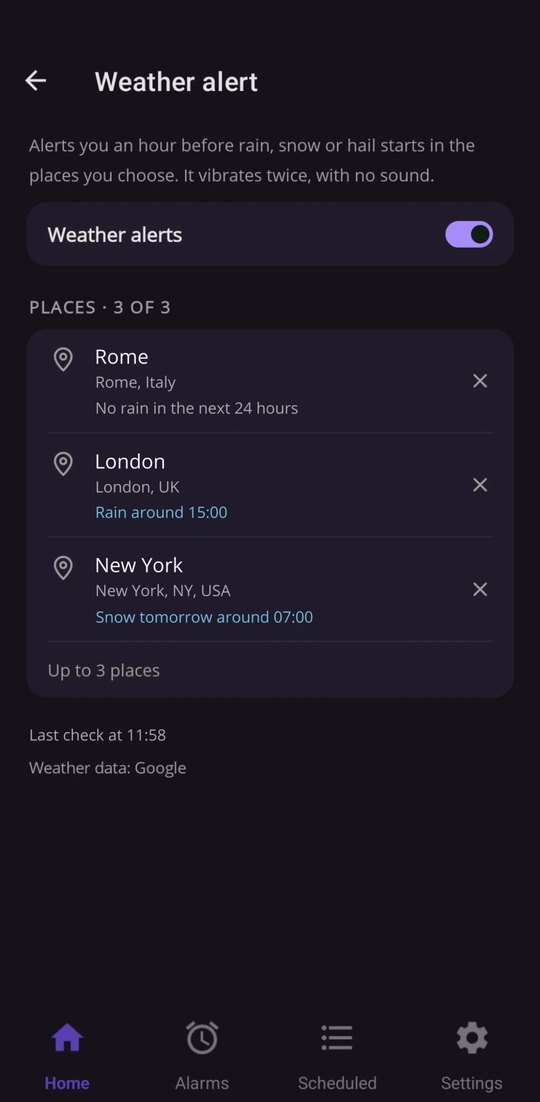
One alert each time it starts, an hour ahead. And if it’s already raining and nobody saw it coming, it tells you anyway, with the time it should stop.
Even at night, without waking anyone. With the phone on silent or Do not disturb, it doesn’t vibrate.
Turn it on and at 20:00 you get tomorrow’s weather for all your places. No vibration, and only when something is on the way.
Checked several times a day for each place. No location permission needed: you choose the places.
Forecasts go hour by hour: “around 15:00”, not to the minute. And a forecast can always change.
Shift workers, commuters, business travelers, students: anyone whose schedule changes every day.
The appointments carrying the marker turn into alarms by themselves, at the time they start.
Move or delete the appointment: the alarm follows it at the next check.
Every account, Google and Outlook side by side, shared calendars included.
The bell comes as standard. In the settings you can put a word of your own in its place.
Dentist at 10, alarm at 8: you move the time of the calendar alarm, even for every repeat.
System exact alarms: they ring even when the phone is on standby.
Turn off one occurrence from the schedule, without touching the alarm or the other days.
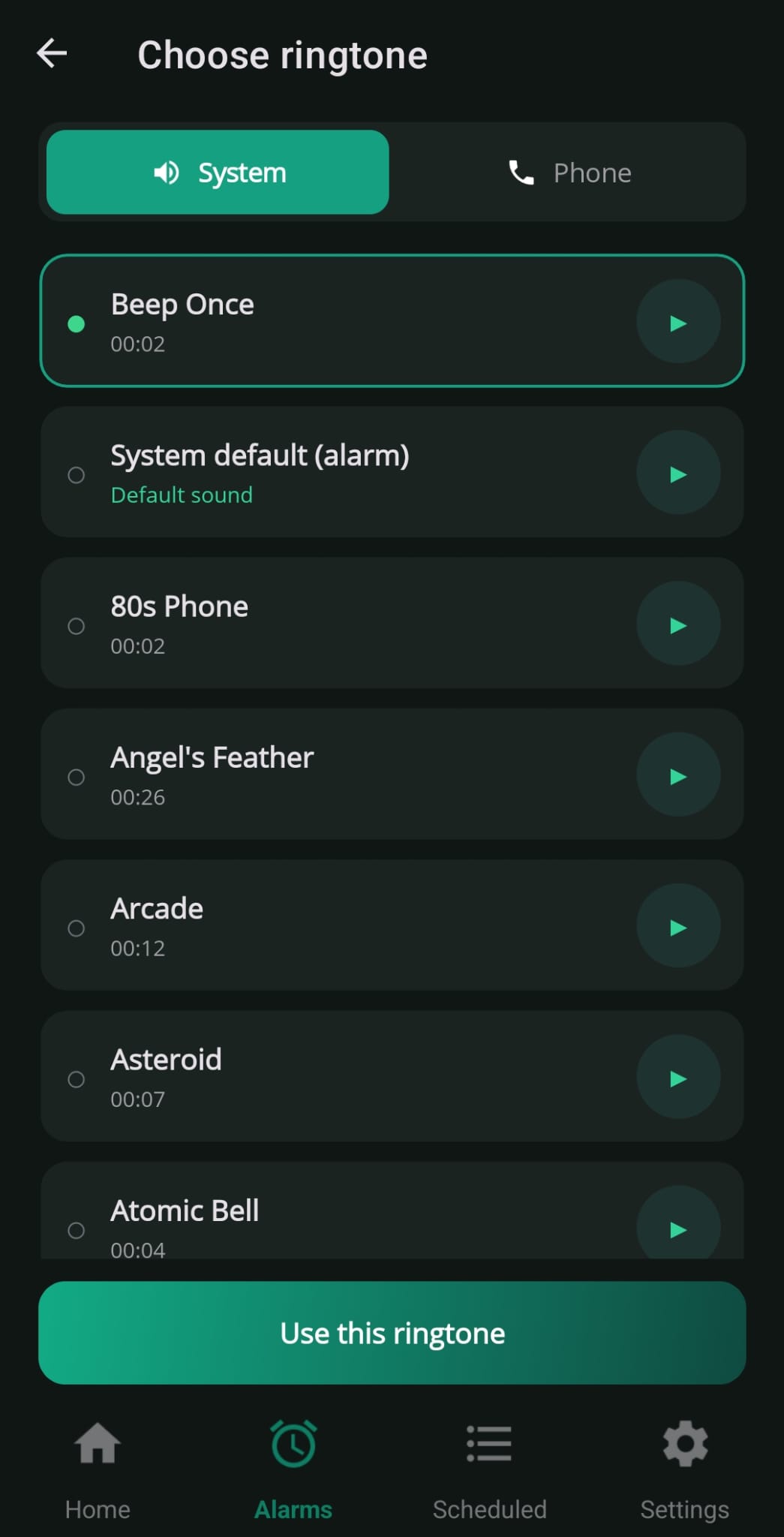
System sounds or files from your phone, with preview and real volume.
A volume of its own for every alarm, snooze with your choice of interval and repeats, vibration if you want it.
Day by day, when your alarms will ring: from this Monday, five whole weeks.
It rings a few minutes before your stop, by train, bus, car, motorbike or bike.
Rain, storms, snow and hail an hour ahead, in three places of your choice.
Times take center stage. Rounded cards, gradient accents, everything where you expect it.
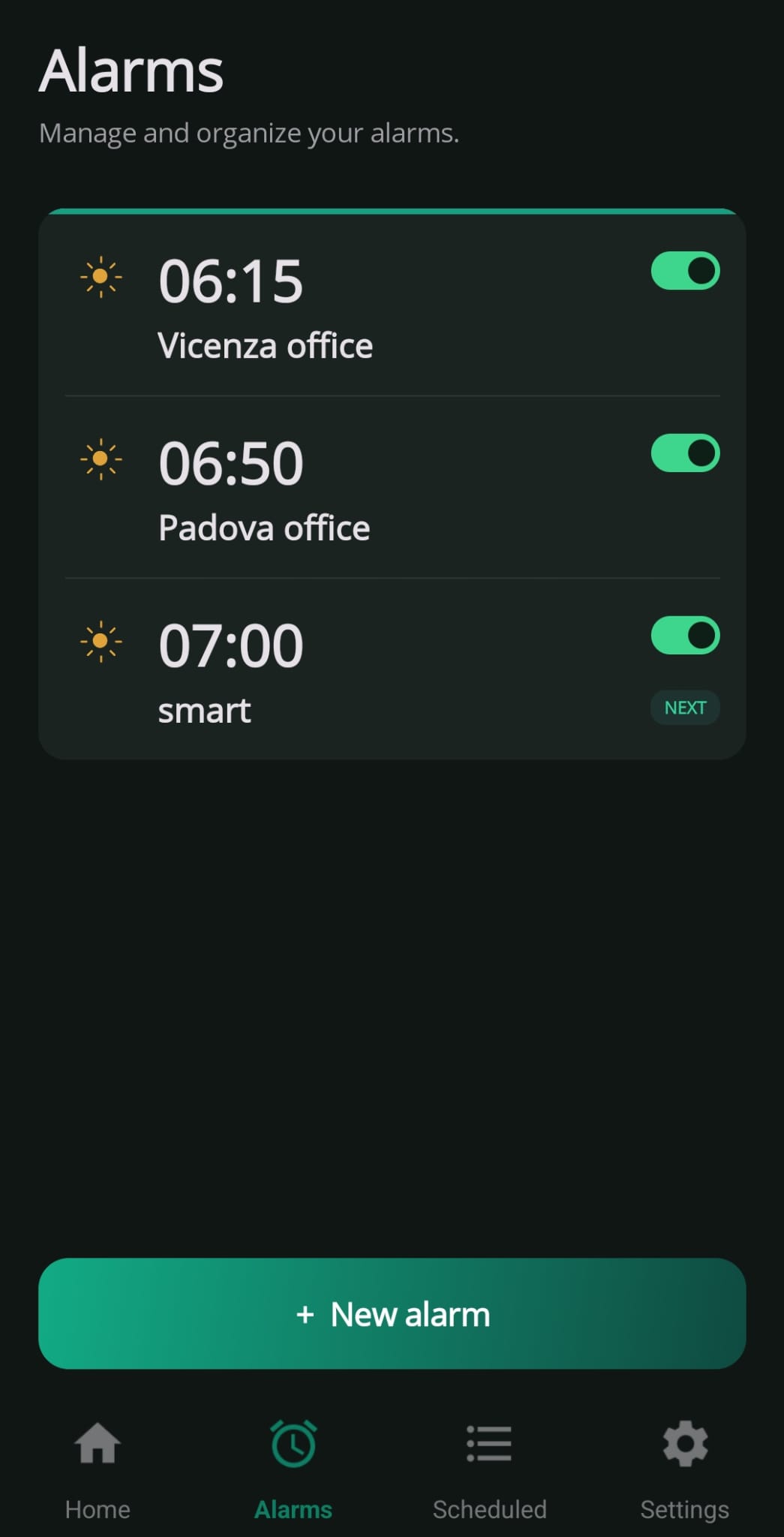
At the time you set, the alarm takes over the whole screen, even with the phone locked and in your pocket.
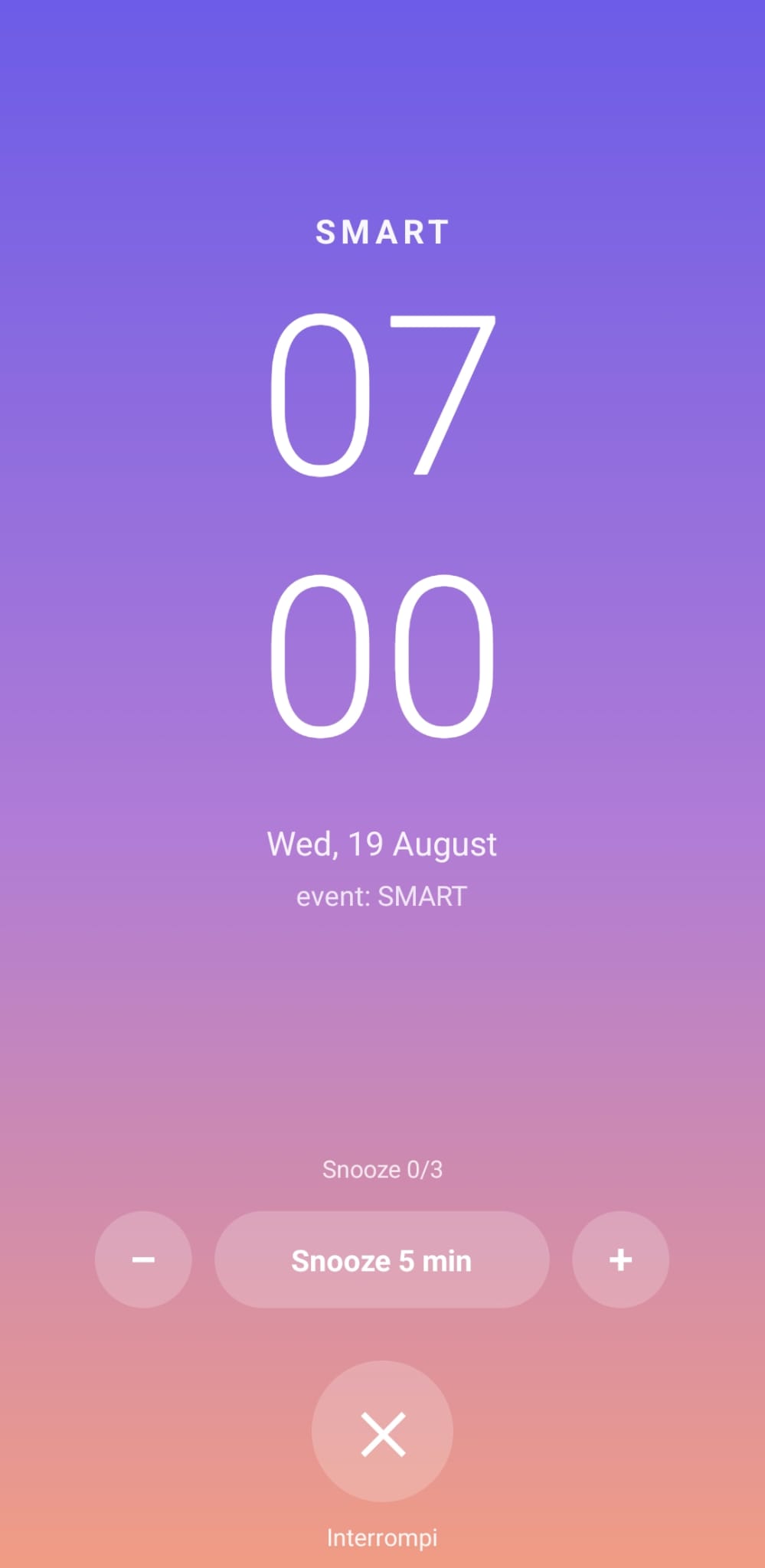
One big button to snooze (with − and + to change the minutes on the spot) and one to stop it.
Volume, power or your headset keys: they snooze the alarm, or switch it off when there are no snoozes left.
Cover the screen for a second and lift your hand: the alarm snoozes. In the dark, without looking for anything.
Change the color of the whole app with one tap.
Fully localized interface. It starts in your phone’s language.
Wakemeapp reads your appointments read-only and never saves them to a server: the app has no server. It uses your position only during a GPS alarm you started, and doesn’t keep it. No profiling, no ads.
It is the alarm’s own time: the alarm rings when the appointment starts. Need it earlier? You move it in the app: dentist at 10, alarm at 8. An appointment lasting all day has no time of its own, so it is left alone.
The bell 🔔 comes as standard, and you can swap it for any symbol or word you like. The rest of the title becomes the alarm name.
It does. The alarms you set yourself ring on the days you pick, with nothing connected: time, days, ringtone and snooze.
Not yet. Today Wakemeapp is available only for Android (6 and up). An iPhone version is coming.
Never. Calendar access is read-only: the app reads titles, days and times to build the alarms, and never writes a thing in your calendar.
No. You connect your Google Calendar or Outlook through the official sign-in; there's no Wakemeapp account and your data stays on your device.
You choose: every 1, 12 or 24 hours. With 12 and 24 the check lands at night, around 3, so the day’s alarms are ready when you wake up. There is a “Sync now” button as well.
Yes. It uses system exact alarms and a full-screen display: they ring on time even with the screen off and the phone on standby.
Google Calendar and Outlook, several accounts at once: your own calendar and the ones shared with you.
While it’s on, it follows your position and works out the minutes left from your speed and the route (on a train, the tracks). It’s an estimate: in a long tunnel it may ring a little early. If you stay still for a long time, move away or the trip lasts too long, it stops by itself and tells you.
No. Only while a GPS alarm that you started is on, with a notification always visible to stop it. The position isn’t kept after the trip, and the app never asks for your location in the background.
From Google, hour by hour, for the places you choose, up to three. No location permission needed. The alerts come with two vibrations and no sound.
From Android 6 onwards, phone and tablet.
Coming soonOn Wear OS watches, Galaxy Watch included: the alarm reaches your wrist too, and you stop it from there.
Coming soonThe same alarm on iPhone, coming soon.
Coming soonA bell on the appointments that have to wake you, the alarms you set yourself, and on the train you sleep until your stop. From that moment there is nothing left to remember.
 Wakemeapp